Page Last Updated: March 25, 2025
Tracking Repo Usage: Server Access Logging🔗
To track the number of repository downloads, views, and other information, you can parse server access logs, which provide detailed records for all requests made to a bucket.
Bucket Configuration🔗
You will first need to ask the Informatics Hub to enable AWS S3 server access logging - see instructions and details under Enabling Amazon S3 server access logging. Informatics will create a separate bucket to stash the logs. They will then need to update the permissions appropriately (see Permissions for log delivery).
At minimum, the permissions for your IAM user or role should include the following policy statement to allow listing objects in the specific S3 bucket and getting objects from the bucket:
{
    "Effect": "Allow",
    "Action": "s3:ListBucket",
    "Resource": "arn:aws:s3:::bobsrepository-logs"
}
{
    "Effect": "Allow",
    "Action": "s3:GetObject",
    "Resource": "arn:aws:s3:::bobsrepository-logs/*"
}
Server access logging captures every request made to your bucket, including GET requests (downloads). Note that it takes up to 48 hours to populate with logging data.
Install AWS CLI🔗
Install the AWS CLI to download logs from the command line (see full instructions here) and confirm successful installation:
For Mac users:
curl "https://awscli.amazonaws.com/AWSCLIV2.pkg" -o "AWSCLIV2.pkg"
sudo installer -pkg AWSCLIV2.pkg -target /

# Verify the installation
which aws
aws --version
Downloading Logs🔗
Once logs are available, download them locally in order to parse them.
Option 1 - Use Download Script [Recommended]🔗
Use the script download_logs.sh. This script will prompt you for your credentials and download logs from the specified bucket and save them to a local directory (./downloaded_logs). This script is useful as it will skip any folders that have already been downloaded, and will only download new logs:
python3 download_logs.py --bucket bobsrepository-logs
Option 2 - Use CLI Via Command Line🔗
Alternatively, you can simply run aws configure to configure with your IAM user credentials - you will be prompted for your Access Key ID, Secret Access Key), Region (e.g., us-east-2), and Output format (e.g., json) - followed by aws s3 cp to copy the logs to a local directory:
# Configure AWS CLI
aws configure

# Copy logs to local directory
aws s3 cp s3://bobsrepository-logs/ ./logs/ --recursive
Parsing Logs🔗
The logs will contain information in the AWS format, corresponding to the following fields:
bucket_owner bucket [datetime] remote_ip requester request_id operation key request_uri
http_status error_code bytes_sent object_size total_time turn_around_time referrer
user_agent version_id host_id signature_version cipher host tls_version access_point_arn
acl_required
To get information about number of downloads (by unique users) over time, the log information we are interested in is:
- operation: REST.GET.OBJECT
- HTTP status: 200 (successful)
- key: the file being downloaded
- requester or remote_ip: who downloaded it
- Date (to track over time)
To parse the logs, use the script parse_access_logs.py. An example usage is:
python3 parse_access_logs.py --logdir /path/to/downloaded_aws_logs
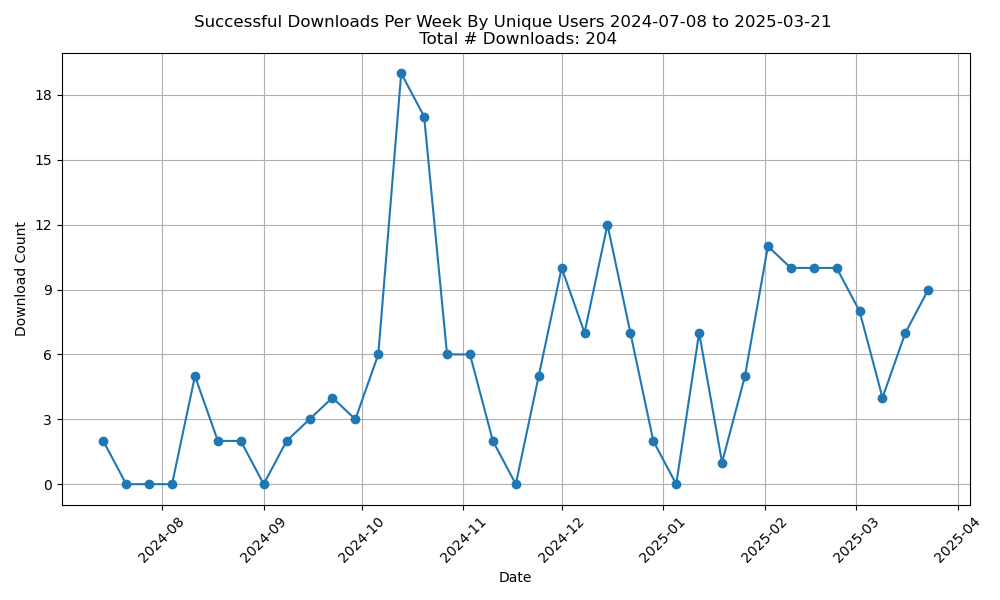
This script will output csv files in a folder called parsed_logs with the full list of successful downloads over time (parsed_output.csv). The file parsed_output_filt.csv contains successful downloads over time with duplicate IP addresses removed to identify unique users, removal of logged downloads without values for object_size or bytes, and potential bot activity filtered (based on the strings bot and/or crawl in the user_agent field). The code will also generate the figure downloads_over_time.png from the latter csv file, which shows the number of downloads per week, with the total number number over time listed in the title: